Features FAQ Try Free

Turn Word documents into editable Figma pages

Import a .docx file. Get clean frames, auto layout, linked styles, and a Style Guide page. Under 30 seconds.

Strategy-Report.docx
Q4 Marketing Strategy
Executive Summary
Key Objectives
Timeline
YOUR DOCUMENT
Docs to Design
Step 1 of 5
Drop your .docx here
or click to browse
📄 Strategy-Report.docx 2.4 MB
1
2
3
4
📄 Strategy-Report.docx
8
Headings
24
Paras
6
Lists
3
Images
Fonts
Inter
Inter
Logo
Upload logoPNG, SVG, JPG
Layout
↔ Horizontal
↕ Vertical
Bullets
● Circle
0%
Creating document...
Preparing styles and fonts
Choose fonts
Page layout
Bullet styles
MZM Labs
Q4 Marketing Strategy
Executive Summary
Key Objectives
Timeline
DESIGNED OUTPUT
Step 1: Document appears
CHALLENGE

Your docs live in Word. Your design lives in Figma.

You write in Word. But when you need a designed version in Figma, you start from zero. Copy text. Rebuild layouts. Re-apply styles. Every single time.

INSIGHT

Imports preserve text, not design.

Standard document imports dump unformatted text into your design tool. You lose structure, hierarchy, and branding. The design work still falls on you.

ANSWER

Docs to Design reads your document's DNA.

Our engine analyzes structure, hierarchy, and styles. Then applies real design. Layouts adapt to Figma's native tools. Styles map to your brand. You get a finished design, not a text dump.

What you get in Figma

Auto-Layout Frames

Every page becomes a native Figma auto-layout frame. Resize, reorder, and edit — the layout responds. No locked groups, no rasterized output.

Editable Text + Named Layers

Headings, paragraphs, tables, and lists land as editable Figma text layers with named hierarchy. Select, copy, or repurpose any element.

13 Text Styles + 7 Colour Styles

Word heading and body styles map to linked Figma styles. Change a font or colour once — every page updates automatically.

Auto-Generated Style Guide

Every import produces a Style Guide page with typography, palette, and spacing samples — each sample linked to its Figma style. Keep it, share it with the team, or copy it into a design system.

Cover Page + Headers + Footers

A branded cover with your logo, title, and classification. Headers and footers on every page with automatic page numbers.

Native Figma Layers Throughout

Pages, frames, text, and tables — all native Figma objects. No embedded blobs. Every layer is selectable, moveable, and yours.

Three screens. One workflow.

This is the actual plugin. No mockups.

01 Upload
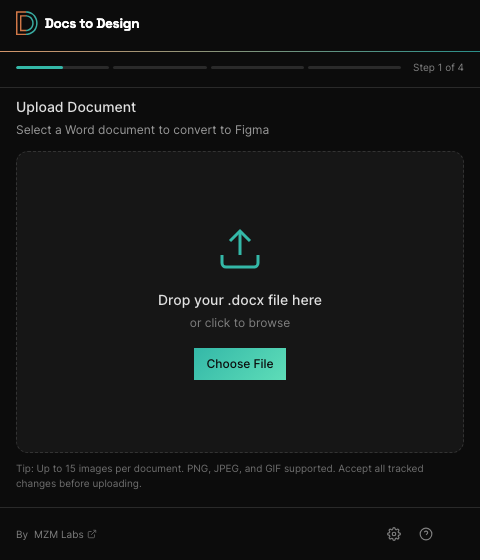
Plugin upload screen: drag and drop your .docx file

Drop your .docx file into the panel. The plugin parses headings, lists, tables, and images automatically.

02 Configure
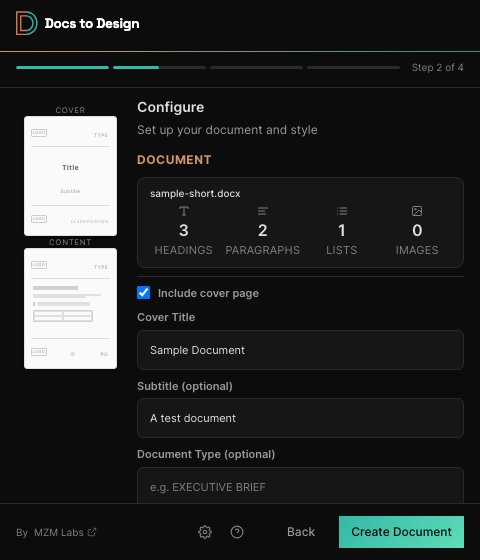
Plugin configure screen: set fonts, cover page, and style options

Set your heading font, body font, cover page details, and bullet style. Every option updates the output in real time.

03 Done
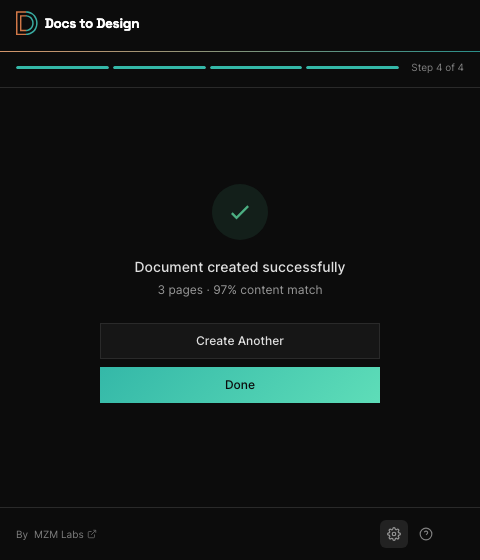
Plugin complete screen: document created with page count and content match score

Your document appears on the Figma canvas as fully editable frames with auto-layout, linked styles, and a content match score.

Three steps. That's it.

1

Upload your Word doc

Drag your .docx in. The plugin reads headings, lists, tables, images, and blockquotes, even without Word styles applied.

2

Set your style

Choose fonts, upload your logo, pick bullet styles and layout. Takes about 20 seconds. Defaults are already good.

3

Open in Figma

Fully editable frames appear on your canvas with auto-layout, linked text styles, cover page, headers, footers, and page numbers.

Questions

What file formats does Docs to Design support?
Docs to Design supports Microsoft Word documents (.docx). Upload your .docx file and get editable Figma pages in seconds.
Is the output editable?
Completely. Auto-layout frames you can resize and reorder, linked text and colour styles you can update globally, and named layers throughout. Docs to Design is a starting point, not a locked output.
What’s the difference between Free and Pro?
Free gives you real editable output — up to 5 pages per import, 5 imports every 30 days. Pro is for full-document workflow: up to 20 pages per import, unlimited imports while active. Same editable Figma output on both tiers. Pro unlocks scale.
Does the plugin store my documents?
Docs to Design only requests the network access needed to process your import and verify your licence status. Use synthetic or non-confidential files when testing. See our privacy policy for the full data-handling policy.

From Word to Figma. Designed in seconds.

Stop rebuilding your designs from scratch.